
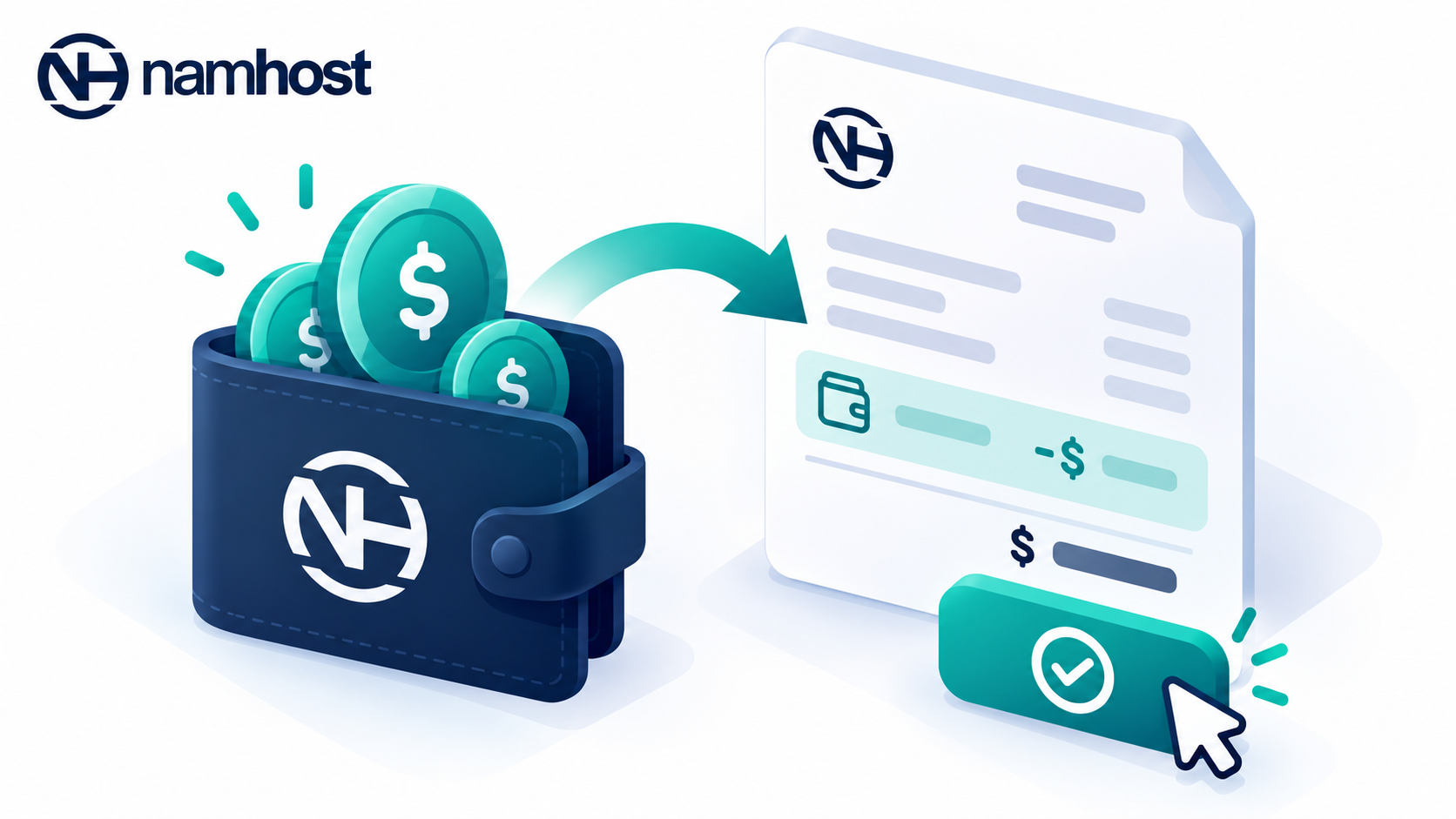
If you have credit on your Namhost account, you can use it to pay an invoice. You don't need to turn on automatic credit payments to do this. Paying manually is useful when you want to choose which invoices your credit covers, or when you prefer to review each invoice before paying it. Steps to apply credit to an invoice
Paying manually is useful when you want to choose which invoices your credit covers, or when you prefer to review each invoice before paying it.
Steps to apply credit to an invoice
- Log in to your Namhost account at https://www.namhost.com/login
- Once logged in, open the invoice you want to pay
- Click Pay Now
- In the Pay with Account Credit section, check your Available Credit and the Invoice Balance
- Click either:
- Pay Full Invoice with Credit if your credit covers the full amount
- or Apply Credit if your credit is less than the invoice total
What happens next?
If your credit covers the full invoice, the invoice is marked as paid immediately and your Tax Invoice Receipt is issued.
If your credit is less than the invoice total, all of your available credit is applied and the page shows the remaining balance. You can pay that balance online or by EFT.
Important to note
- The Pay with Account Credit option only appears if your account has credit available
- Credit can't be used to pay for a credit top-up invoice
- If you would prefer credit to be applied automatically in future, see How to Automatically Apply Account Credit to Invoices